Stremio - Replace Every Streaming Service
If you, like most people, are fed up with needing a dozen streaming services in order to watch everything, then you need to try Stremio. There are three primary benefits to this:
- You can watch basically every show and movie.
- Everything is in one place.
- Netflix, AppleTV, Hulu, Peacock, etc.
- So is your watchlist and currently watching, meaning you don’t have to constantly switch programs.
- Better video and audio quality than streaming typically offers.
And the best part is the price! It is only $19 for 6 months (depending on when you are reading this, the price may have changed, but it shouldn’t be drastically different). This writeup will walk you through the setup for Stremio as well as explain the why and how. If you don’t care how or why and just want the step-by-step instructions: click here.
How does Stremio work?
There are three levels to Stremio:
- Initial Seeder
- This is just someone who takes a file and makes it available for others to download directly from their computer. In the case of shows and movies, the initial seeders get high quality videos of said shows and movies.
- From there, other people interested in these videos can download them directly from the initial seeder’s computer. Once downloaded, they seed the file as well. Allowing the next person who wants that particular show or movie to get the file from both of them at once: this both increases download speed and decreases the strain on each seeder’s hardware. The cycle repeats as more and more people download and seed the video.
- The downloading of these files from others’ computers is a type of peer-to-peer file sharing (P2P), also known as torrenting. The files themselves are torrents.
- Debrid Services
- These are giant servers that download torrents and allow people that subscribe to them to download the file directly from their servers.
- Debrid services are very useful, as sometimes all seeders of a file stop seeding it, and people can no longer gain access. In addition, these servers are typically way faster as you don’t have to rely on random people’s internet connections.
- Stremio
- Stremio acts as a bridge between your screen and these debrid services. By using installed plugins, Stremio requests the movie or show you want from a debrid service and puts it on your screen.
Security Risks
Because torrenting (see above) is decentralized, anybody can join. This means law enforcement or agencies hired by media companies may also help seed the content. But why would they help with piracy? Because when they send the files out to users, they can track where they are going. Then you get a warning and a bill in the mail from your internet service provider telling you to stop or else your service will be disconnected.
However, this is incredibly rare and is unlikely to happen. In particular, for our use case they’re infinitely more interested in the people that released the video in the first place and those seeding the file to provide access to everyone else. That doesn’t mean we won’t take steps to protect ourselves against it.
That’s where the debrid services come in. By downloading from them you can ensure you are safe as there would be no way for law enforcement or media companies to figure out what you are downloading to send you a bill. The servers are typically located in countries with terrifically strong privacy laws that would prevent agencies from strong-arming them. In addition, the good ones have a “no logging” policy that is also audited regularly: meaning there wouldn’t be documents on who downloaded what even if an agency did successfully strong arm them.
Requirements
- Laptop
- Real Debrid Account (Follow this guide here if you don’t have one yet)
Setting Up Stremio
Apologies for the number of nested lists. There are a lot of steps, but don’t be intimidated. The reason there are so many steps is I was incredibly thorough on detailing each individual action, so it should be pretty straightforward to follow along.
Go to Stremio and create an account. Once your account is created, follow the below to configure the addons for your account.
- Go to Stremio Bootstrapper
- Enter your email and password, then click “Log in”
- Configure the addons. Each step is below
- Select Preset
- Standard
- Select Language
- English
- Enter debrid API key (THIS IS SUPER IMPORTANT)
- Select the drop down and choose “RealDebrid”
- To get the key, go to https://real-debrid.com/devices and copy the “API Private Token”
- Paste the API Key into the box adjacent to RealDebrid and move to the next step
- Additional addons
- No need to click anything, skip
- Custom addons
- No need to click anything, skip
- Additional options
- No need to click anything, skip
- Advanced options
- No need to click anything, skip
- Load preset
- Click “Load addons preset” and wait, it may take a minute
- Customize addons
- Look for the addon “Cinemeta”, it is likely at the top
- Click the pencil icon, second from the right
- Click “Advanced mode”
- Select all of the content within the box and delete it. It should be completely empty
- Click the below button and paste within the box
- Click “Save”
- Bootstrap account
- Click “Sync to Stremio”
- Select Preset
- Stremio should now be installed on your computer and correctly configured. Any device you log in on should have the addons already added and configured, so you will never need to do this again.
Below is an image of the bootstrapper config. 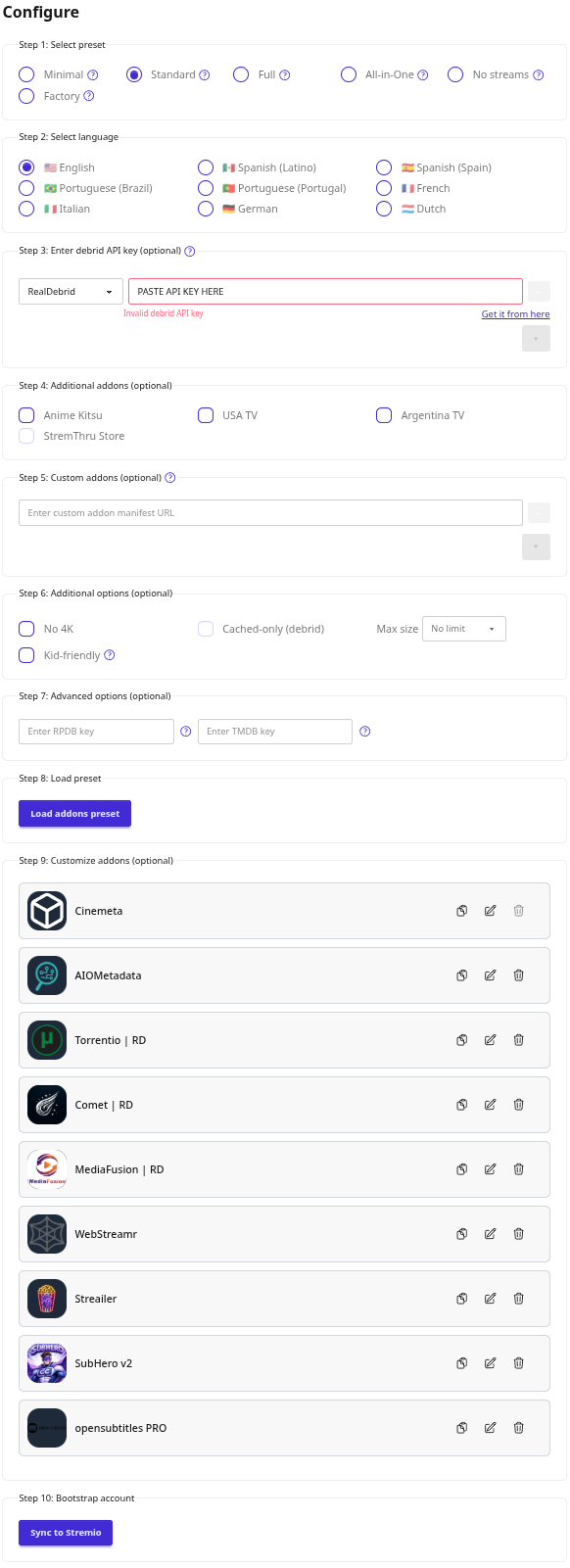
Using Stremio
There are two parts to using Stremio: setting it up on your devices, and actually understanding and navigating the interface. I will cover both.
Setting it up on your devices
Stremio can run on four different devices: a Smart TV, Streaming Stick, Computer, or Phone/Tablet. Details on each are below.
- Smart TV
- Most Smart TVs make it really easy to add Stremio (However, Roku is a notable exception to this)
- As there are dozens of TV Brands, it is infeasible for me to cover them myself. However, it appears most just have Stremio in the app store.
- To find out for your Smart TV, go to https://www.stremio.com/downloads and click “TV”. This should say where to find the Stremio app for most common TVs.
- The following post describes installation on an Amazon Fire TV
- Streaming Stick
- Streaming sticks can be a huge upgrade to your TV’s usability and speed. I have found the native Smart TV software on most TVs to be really slow and frustrating to use. And they’re not that expensive either. I will put four links below of different Onn brand streaming sticks as they seem to be reasonably priced.
- Onn Full HD: $20, 1.5GB RAM, 8GB Storage, 1,830 CPU Score
- Personally I would avoid as the specs seem a little too low, even if you aren’t watching 4k video. However, it is the cheapest option.
- Onn 4k: $25, 2GB RAM, 8GB Storage, 2,009 CPU Score
- I think this is a good spot to start if you only plan on watching 1080p content. If you plan on watching 4k, however, I would look at some of the more expensive ones. Although, you could get this and if it is too slow or doesn’t meet your needs, return and upgrade.
- Onn 4k Plus: $40, 2GB RAM, 16GB Storage, 3,131 CPU Score
- This is a great little device. Good scores all around. However, the 4k Pro may perform a little better and it is only $5 more.
- Onn 4k Pro: $45, 3GB RAM, 32GB Storage, 2,050 CPU Score
- This also looks great, its processor is a little weaker than the Plus, but its other specs should make it better for streaming video. I don’t think you can go wrong with the Plus or Pro.
- Onn Full HD: $20, 1.5GB RAM, 8GB Storage, 1,830 CPU Score
- Streaming sticks can be a huge upgrade to your TV’s usability and speed. I have found the native Smart TV software on most TVs to be really slow and frustrating to use. And they’re not that expensive either. I will put four links below of different Onn brand streaming sticks as they seem to be reasonably priced.
- Computer
- You can use Stremio on your computer to watch from your computer, or use an HDMI cable to connect your computer to your TV. You can even get a cheap “Mini PC” off of Amazon for $150 or so dollars with a bluetooth keyboard. This is probably one of the more expensive options, but would offer the best performance and most versatility. Alternatively, look into the previously mentioned Walmart Onn brand steaming sticks.
- Installation on a computer is super easy. You just download and log in from Stremio’s website. Follow the installer prompts to install on your device.
- Phone
- Stremio is super easy to get running on an Android device. All you have to do is download the “Stremio” app from the Play Store and log in. As long as you followed the above setup, it should work without issue.
- Unfortunately, due to development difficulties with Apple, it is more difficult to get it running on an Apple device. While I have not used it myself, the below guide on the Stremio blog explains how to set it up.
Navigating Stremio’s Interface
Depending on the device you are using, Stremio may be laid out slightly differently. However, this should serve as an acceptable guide to the UI and elements. Below is a screenshot of what Stremio looks like when you open it.
Stremio Home
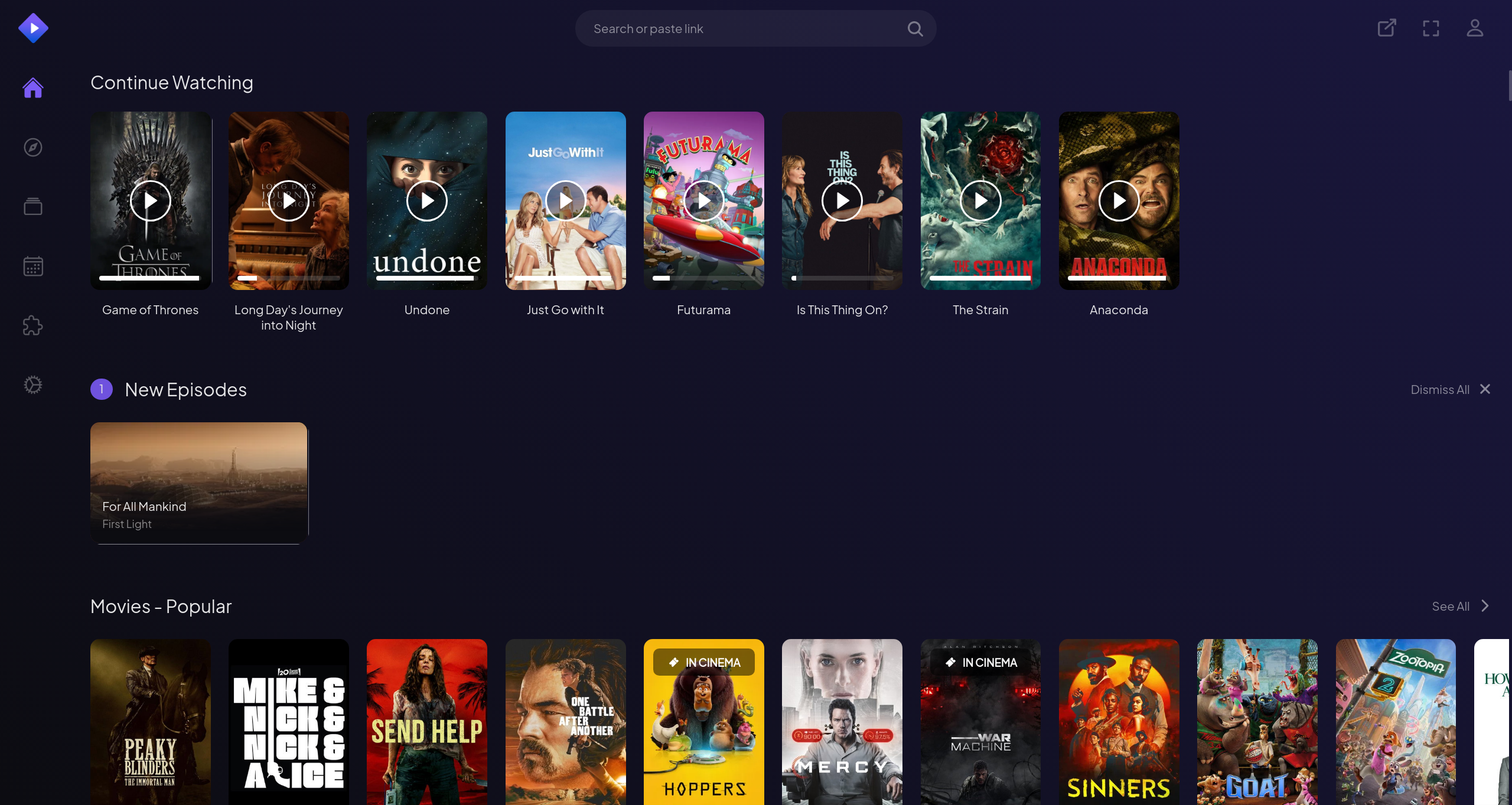
- You can see there is a continue watching just like Netflix, Hulu, or any other modern streaming service has.
- Below that is “New Episodes”. Any show added to your list, or “Library” in Stremio will appear here when new episodes are released.
- Like any other streaming service there are also popular movies and series as well.
- On the leftmost edge of the screen are icons for different locations within the application.
- House
- Home, what loads upon opening the app.
- Compass
- This is the discover page. It shows popular shows and movies. More on this later.
- Stacked rectangles
- This is your Library. Basically “My List” on Netflix. It will have all the TV Shows and Movies you have added to your library. You may have to choose to display “Movie” or “Series” as it doesn’t show both at once.
- Calendar
- This shows upcoming releases for things on your list, including new episodes.
- Puzzle Pieces
- This is for additional addons. You should never need to go here if you followed the setup steps above though.
- Cog/Gear
- This is the settings. I recommend just scrolling through to see if anything jumps out as something you’d like to change. For instance, I like when I press an arrow key or a remote for the show to only go back 5 seconds instead of 30. It’s much less painful to miss a line of dialogue that way.
- House
Stremio Discover
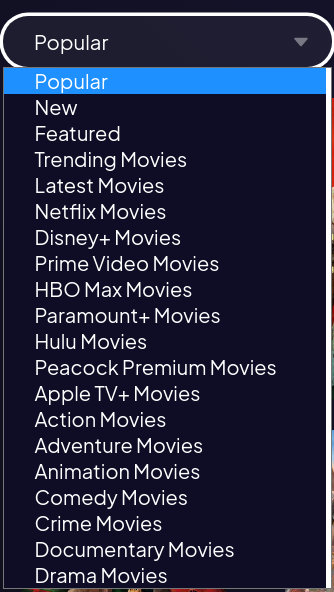
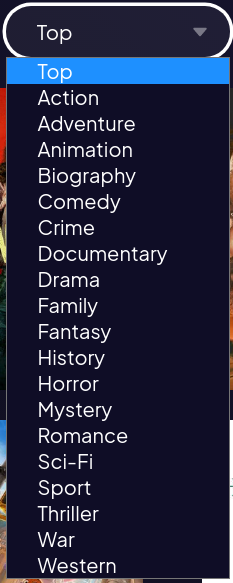
The discover tabs is one of my favorite parts of Stremio. As Stremio has access to all streaming services, it typically shows the best of all services. It also usually has classics that are always popular or seasonal movies/shows as well (Shawshank Redemption is never far from the top).
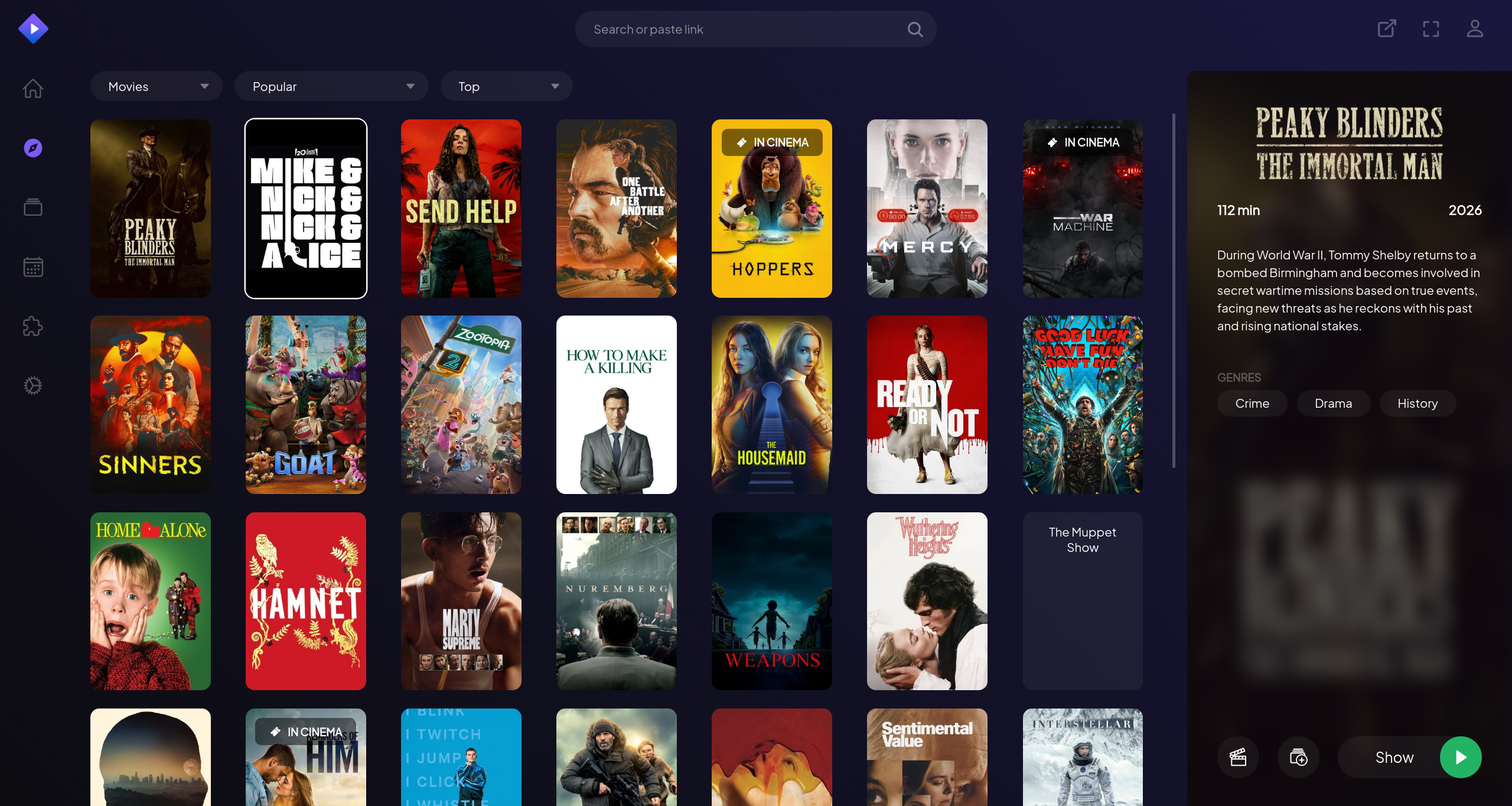
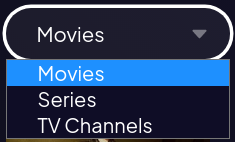
There are a ton of categories to see what is popular. You can choose Movie or Show, how they’re ranked, and genre.
How to actually watch content
If you choose a show or movie, you may end up being a little confused. Stremio isn’t quite as straightforward as other streaming services where you click play and the company decides which video you watch. As content is pulled from a bunch of places around the internet, different qualities and versions exist.
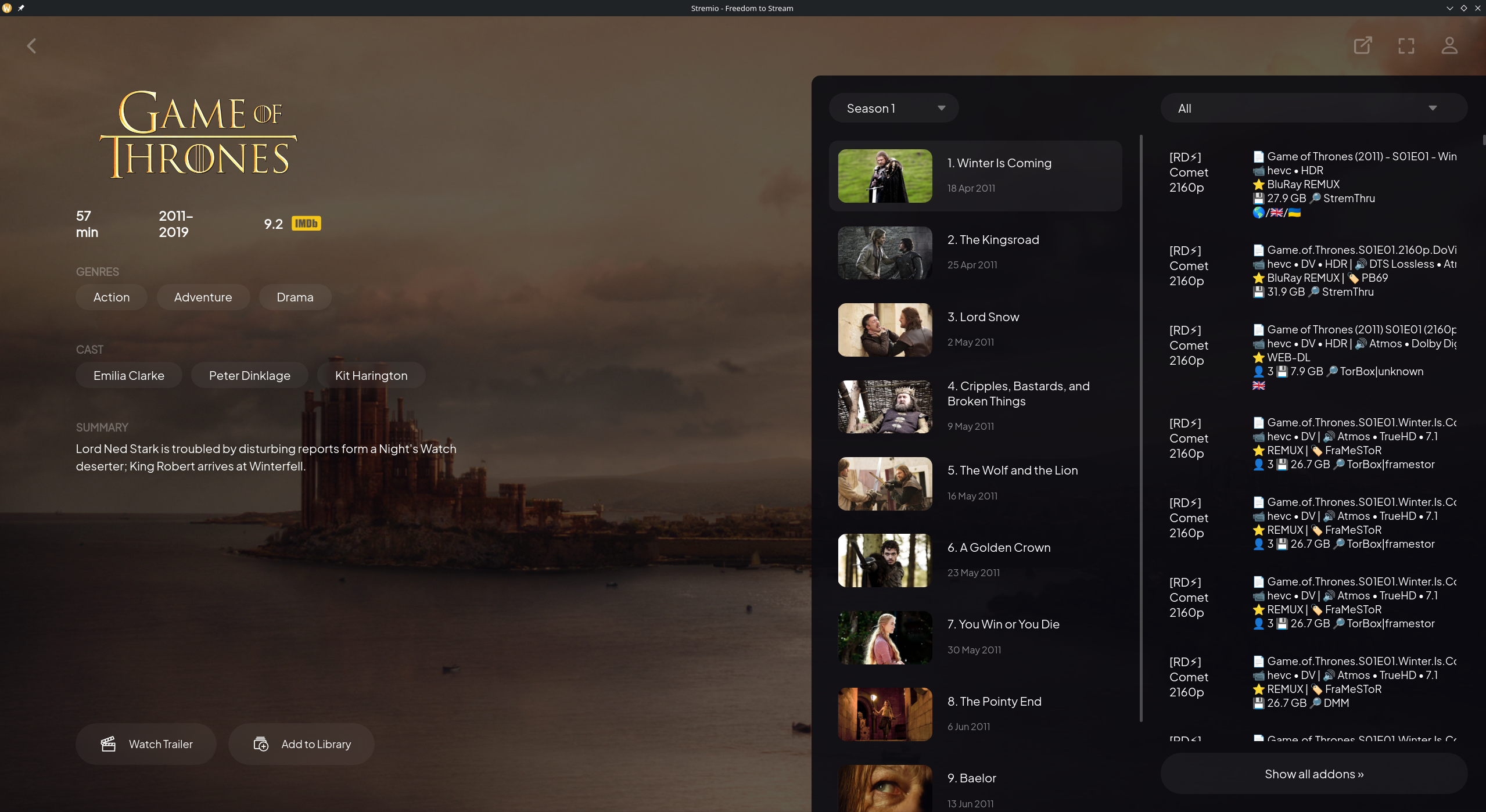
Above you can see what the interface looks like upon clicking a video. You may notice the right side looks super confusing, those are all of the options for sources. Were you to drop down the “All” menu, you can choose which addons are used to curate the list. If you’re having trouble with one, switch to another. Sometimes they crash or get taken down, but you should have plenty of options thanks to the bootstrapper: meaning you’ll always have at least one that works (and usually all of them do).
However, the sources still look a little confusing as there is a lot of information crammed in each box. Below I will explain the elements of one.
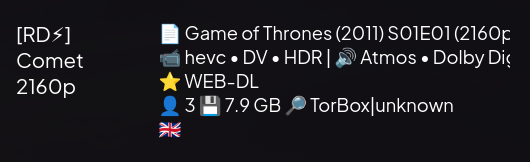
On the left you can see the quality. You may see “4k”, “2160p”, “1440p”, “1080p”, etc. I recommend choosing the highest one that works for your TV. I find 4k sometimes stutters on some devices, so if that happens to you just scroll down until you see 1080p. The top two lines describe the content, title and some other details. Typically it doesn’t matter that much, but the last two lines do.
The star denotes the original source of the video. This might be something like “Web-DL”, “BluRay”, or something else. Typically, BluRay looks the best. However, the value next to the floppy disk is also really important. This is the file size. Typically, larger files are going to have more data and thereby look better (as well as be more likely to have subtitles). However, if the number is really large and you regularly are having to pause your video to allow it to buffer, switch to a smaller option. The final detail is the little person emoji. This means the amount of people online actively seeding it. As you set up Debrid you don’t need to worry about this but it may be a good indicator of quality.
Don’t be afraid to try multiple sources. Often I will start a video from one of the sources and end up backing out and trying another. This might be for a variety of reasons: maybe subtitles are missing, the video looks bad, or some other reason. Don’t be afraid to switch to another.
As a final note: occasionally the default language is not English. Typically all you have to do is change the audio language by clicking the little audio wave icon. As Stremio and piracy is global, so are the languages. Don’t freak out if it’s not in English though, typically you can swap the audio for that source in the settings or try other sources until you find one with English.
Conclusion
Stremio is a fantastic application. It is super useful and has helped me watch a ton of things from every platform without needing a dozen subscriptions. It takes a little bit to get used to, but I promise it becomes familiar very quickly. Apologies for the information overload within this article, but there is a lot of stuff to cover in terms of set up and UI. Once things are set up, though, it is amazing! Feel free to reach out with any questions.